

Introduction
Civilization 6 Complete DLC offers more gameplay modes with the 60-turn limit removed.
This article provides download links for all platforms (including Android, iOS, and Windows).
Download and Installation Methods
Download
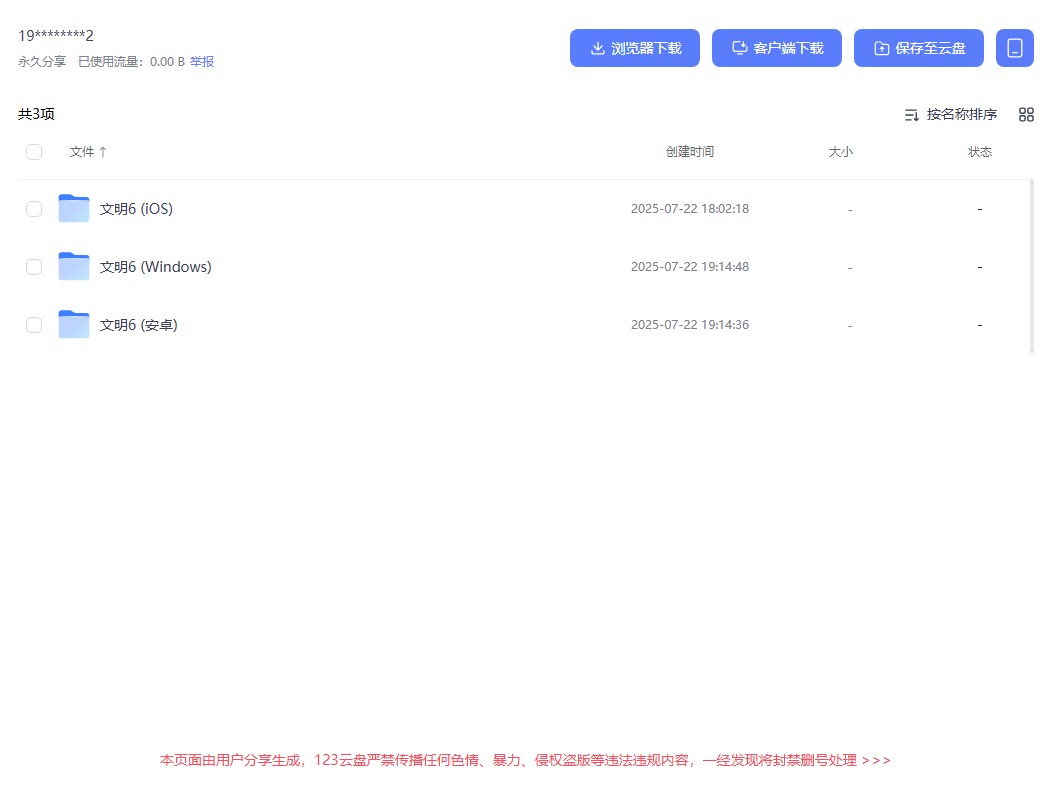
Main download link (123 Cloud Drive):
Open
Secondary download link (123 Cloud Drive):
Open
Select and download the version suitable for your system.
Notes
For Civilization 6 (iOS):
"恢复存档.imazingapp" is for non-jailbroken/TrollStore users and requires a Mac or Windows computer.
"文明6全DLC越狱巨魔.zip" is for jailbroken/TrollStore users and can be restored using Filza file manager.

Installation
Android
Download from the cloud drive and install directly.
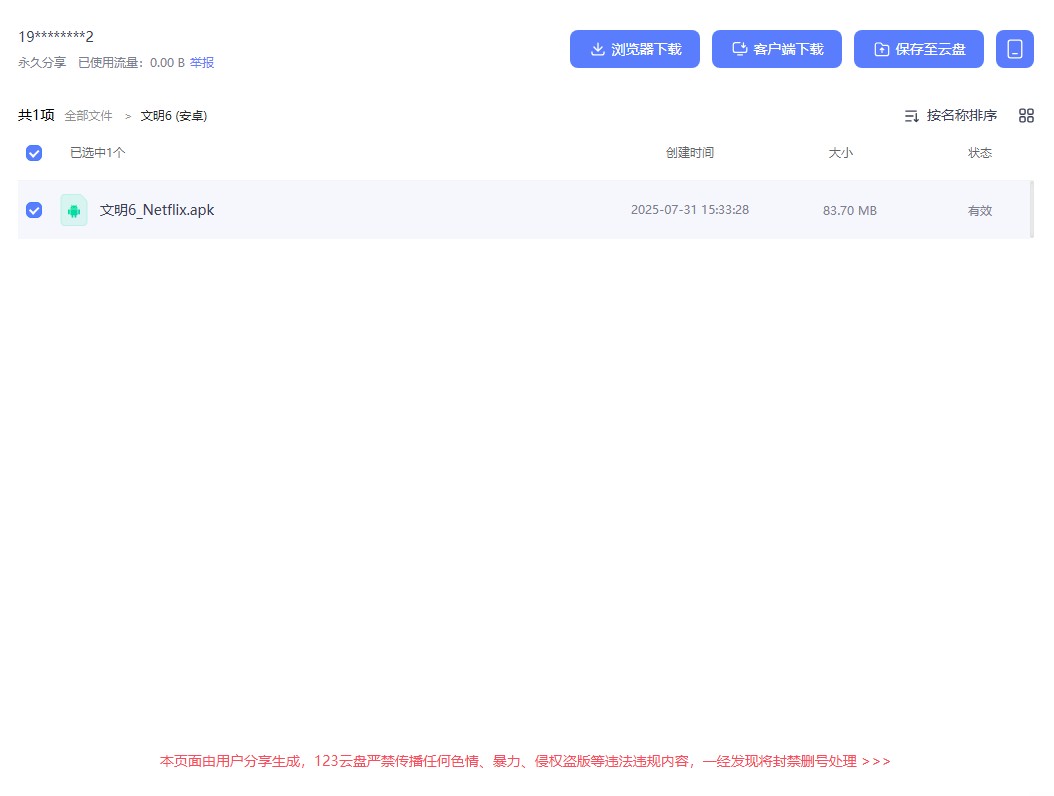
About the language issue of Android version
Because the Android version is modified from the NETFLIX version, the default mode is English. There is no native language setting option in the game. You need to modify the file to display other languages. The specific operation method is as follows:
Android Modification method
1. Download Shizuku and grant Shizuku permissions to MT File Manager (this step can be omitted for rooted devices)
2. Open the MT file manager, open /storage/emulated/0/Android/data/com.netflix.NGP.Civilization6/files/, long press netflix.dat, click "Open with", click "Edit Text", check the sixth line "LANGUAGE=zh", change "zh" to "en", save, and reopen Civilization 6. The file integrity may be re-verified and the message "Downloading data files" may appear. This process may take two rounds. Please wait for a while before entering the game.
3.If you want to change to other languages you need, please enter:
简体中文:chs/zh-Hans
繁体中文:cht/zh-TW
English:en/enu
Français:fr/fra
Deutsch:deu/de
Italiano:ita/it
日本語:jpn/ja
한국인:kor/ko
Polski:plk/pl
Português (Brasileiro):ptb
Русский:rus/ru
(If the language you need is not in the list, please look up the abbreviation of your local language and write it in)
iOS Modification method
1. Open "Settings - General - Language & Region", add the required language in "Language & Region" and restart the game
iOS (Non-jailbroken)
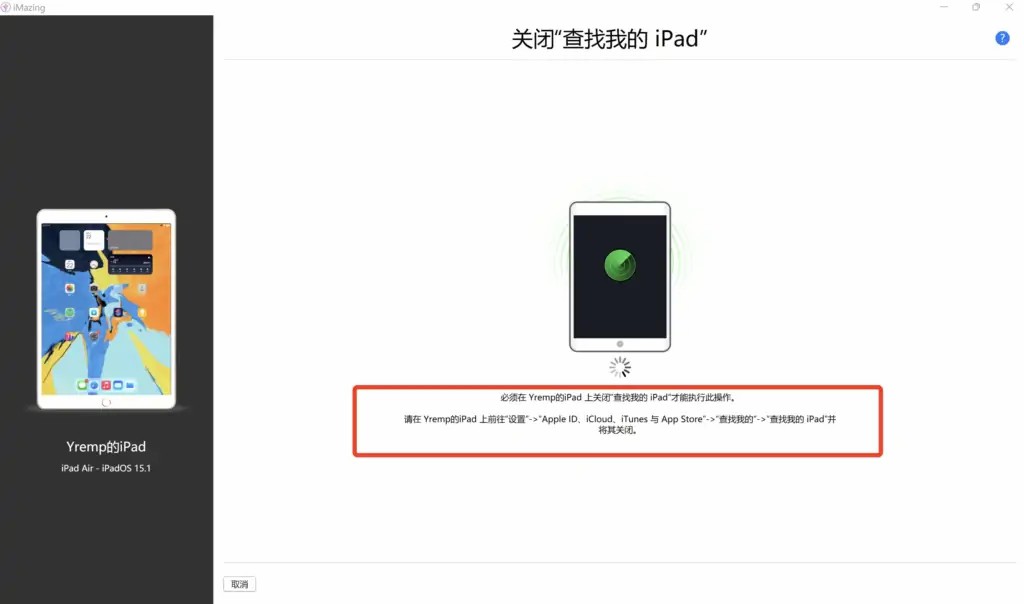
Note: You must turn off "Find My Device" for this method.
How to turn off: Settings - Privacy & Security - Location Services - Share My Location - Find My Device, enter your Apple ID password to disable it.
App Store:
Go to App Store

1. Open your computer and download iMazing.
iMazing:
iMazing Official Site
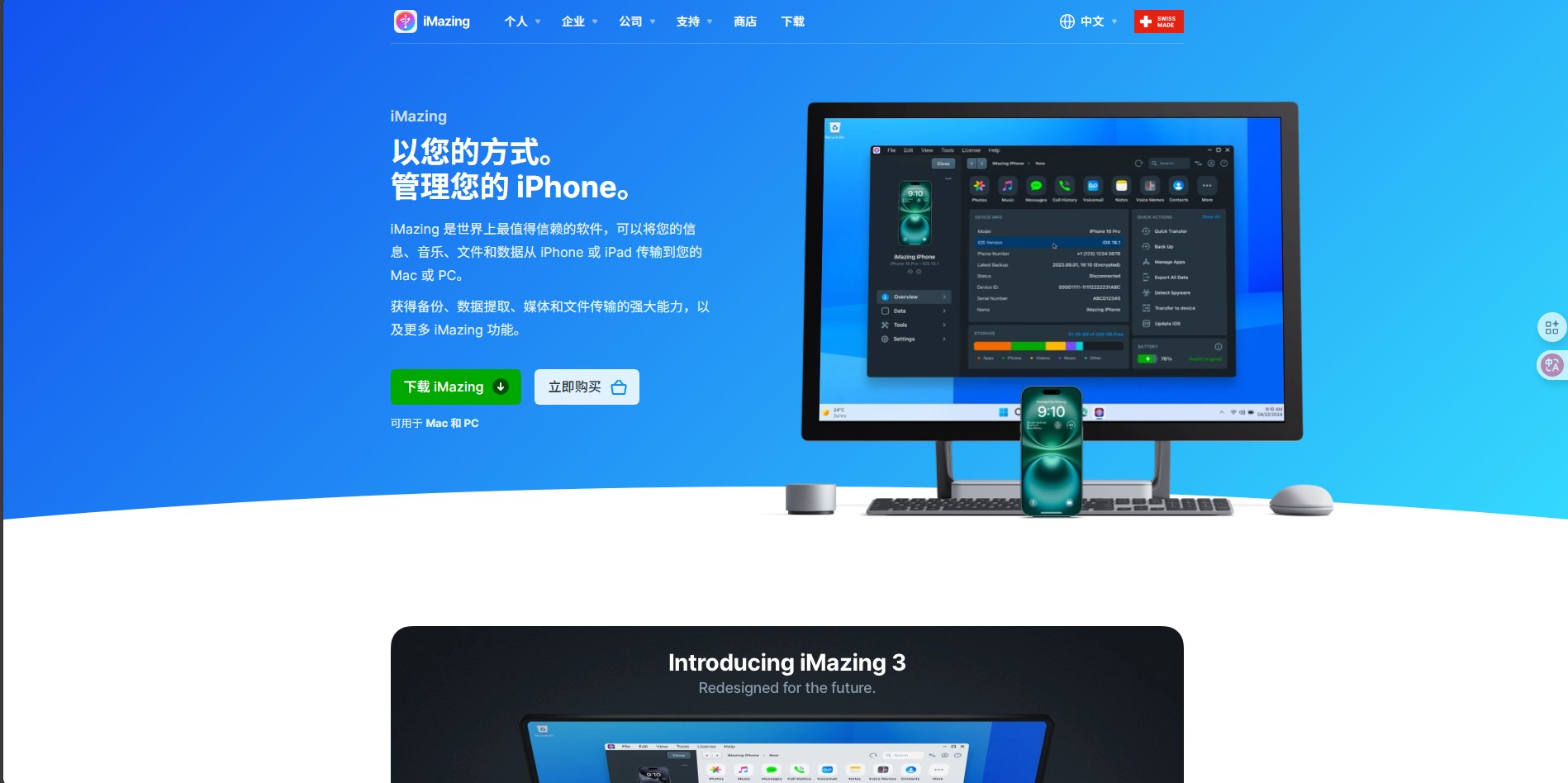
2. Open iMazing, connect your device with a data cable, and click "Applications" on the left.

3. Select Civilization 6 and click "Restore Application". If "Restore Application" is unavailable, click "Manage Applications" below.
The first time you enter "Manage Applications", you need to enter your Apple ID and password. If two-factor authentication is enabled, you also need to enter the corresponding verification code.

4. Click the device tab, select Civilization 6, right-click and select "Restore Application Data".

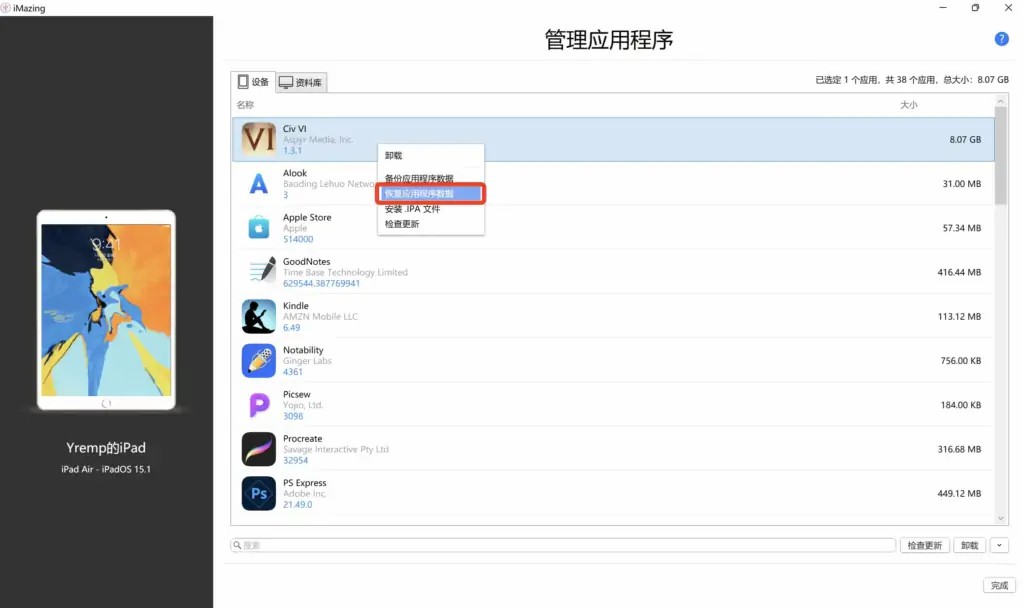
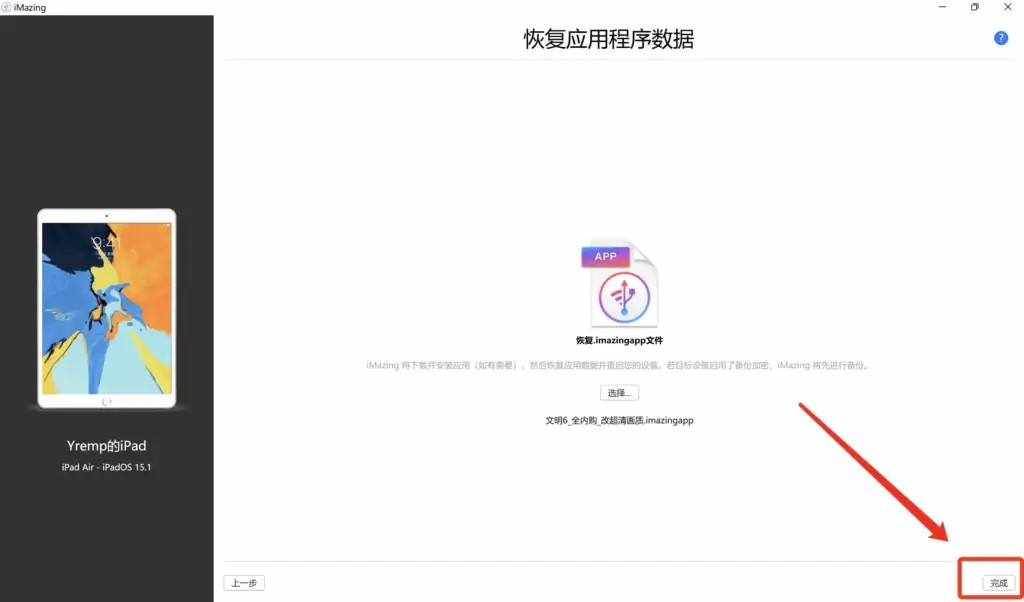
5. Select the "Recovery Archive.imazingapp" file downloaded from the cloud drive and click "Done".
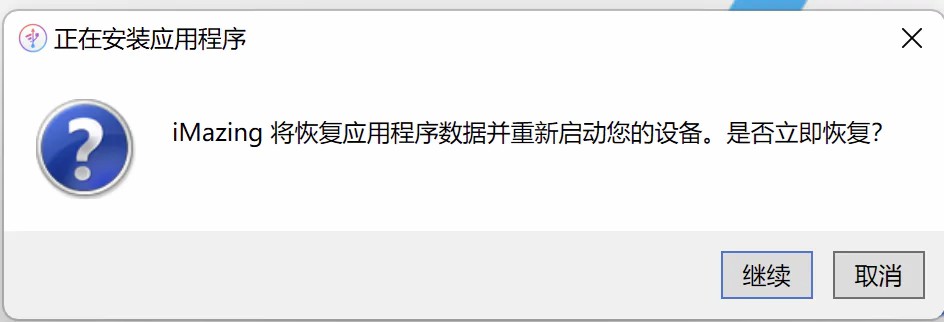
6. iMazing will prompt to restore your application and restart. Click "Continue".
7. iMazing will start restoring your application.

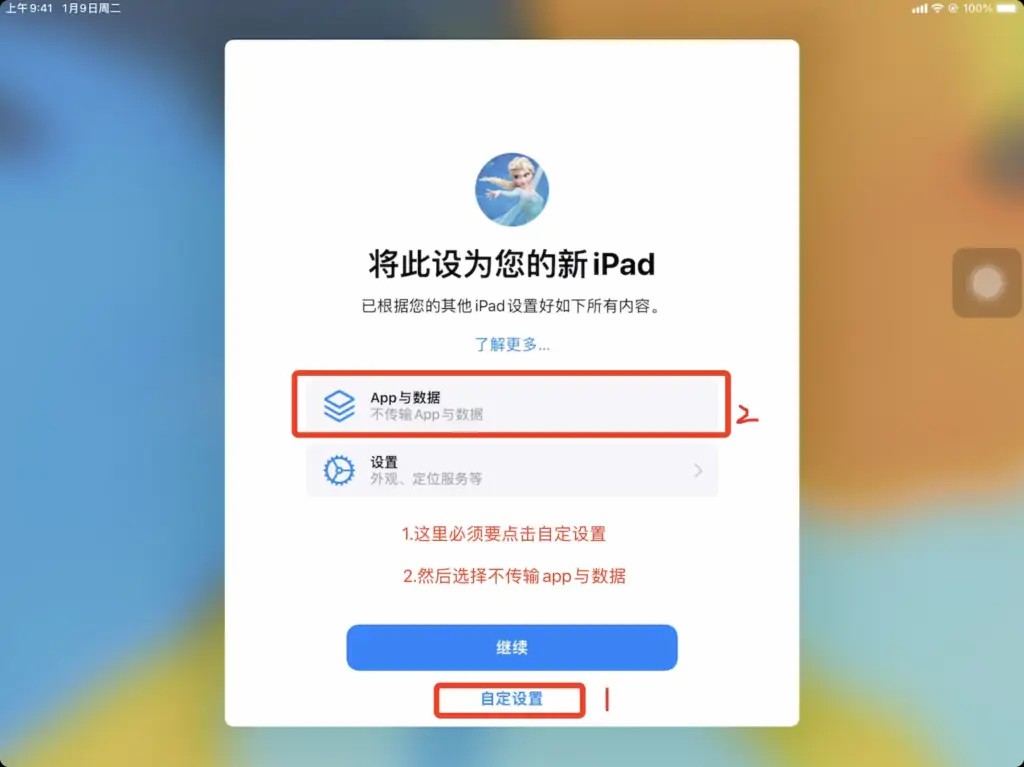
8. After recovery is complete, it will prompt that your device recovery is finished. If your device shows the Setup Assistant, select "Don't transfer apps and data", otherwise your restored application will be lost.
9. After entering your password at startup, if the Recovery Assistant appears, click "Customize Settings" - "Apps & Data (Don't transfer apps & data)", then follow the prompts to complete the process.
iOS (Jailbroken)
Note: This method does not require turning off Find My Device.
App Store:
Go to App Store
Or download "Civilization6.ipa" from the cloud drive and install using TrollStore.
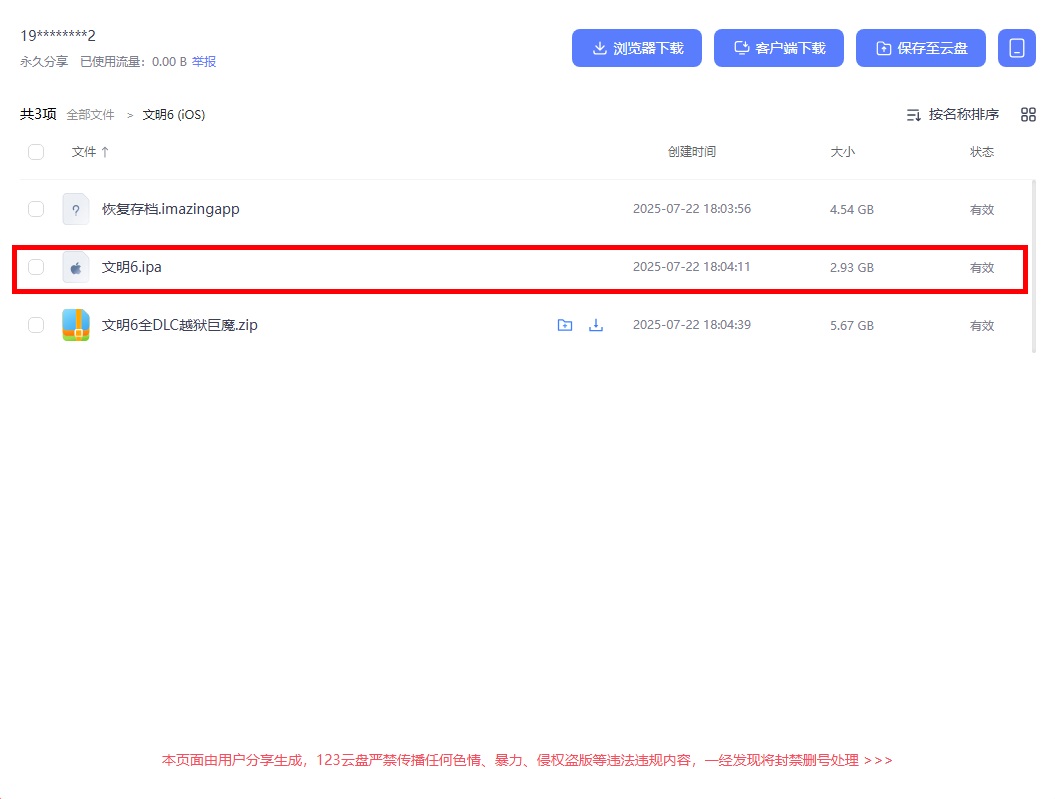
1. Download "Civilization 6 Complete DLC Jailbreak Troll.zip" from the cloud drive and unzip it.
2. After unzipping, there will be two folders "Documents" and "Library". Share these two folders to Filza, then copy them to the clipboard.
3. Open App Manager, find Civilization 6, enter its directory, click paste from Filza clipboard, select "Apply to All", click replace, and you can open the game after completion.
Windows
Download link:
Open
Unzip the compressed package, open the directory Base\Binaries\Win64Steam, and click "CivilizationVI_DX12.exe" or "CivilizationVI.exe" to launch the game.
If opening "CivilizationVI_DX12.exe" reports an error "No available graphics device found. Please ensure your system has the correct and compatible graphics device installed", use "CivilizationVI.exe" instead.
Problem Analysis
If opening "CivilizationVI_DX12.exe" reports an error "No available graphics device found. Please ensure your system has the correct and compatible graphics device installed", it may be that your graphics card driver is not up to date, you have installed an incompatible graphics card driver, or you are using a computing power graphics card similar to P106-100, which prevents the game from calling the graphics card driver. If it's the former, you can download "Driver Talent" or "Driver Genius" to update your graphics card driver. If it's the latter and you are using a computing power graphics card, you may consider replacing it with a new graphics card or a new computer.